
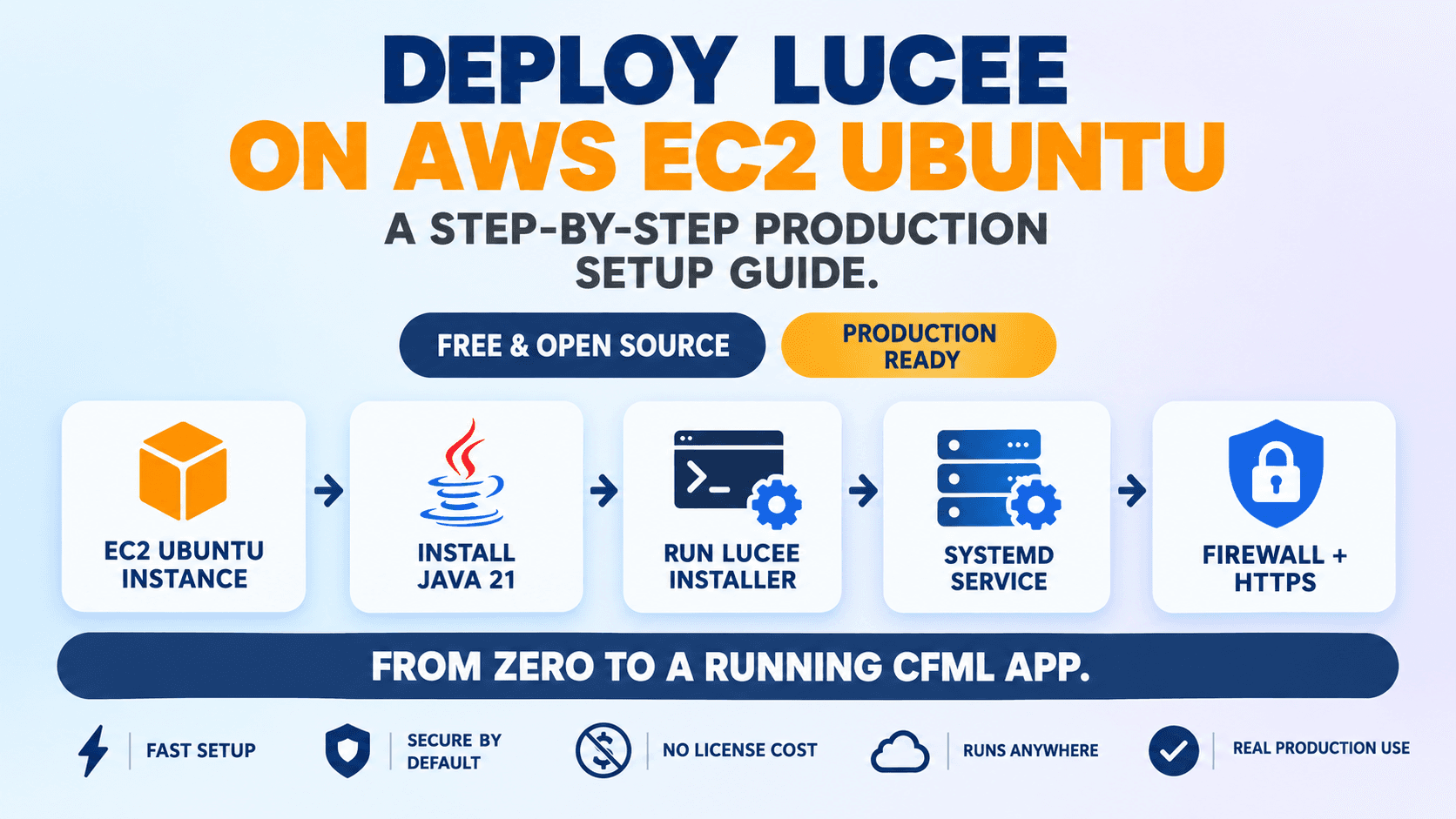
Why self-host Lucee on AWS
Lucee is a free, open-source CFML engine, no licensing cost, which makes an EC2 instance a genuinely cheap way to run a real ColdFusion/CFML application in production. This walkthrough covers the whole path: launching the instance, installing Lucee the way its own installer is actually designed to be run, and locking the server down enough to call it production-ready.
Prerequisites
- An AWS account and basic familiarity with the EC2 console
- An EC2 key pair for SSH access
- Comfort running commands over SSH
- A domain name, if you want real HTTPS at the end (optional)
Step by Step
1. Launch an Ubuntu EC2 instance
In the EC2 console, launch a new instance using an Ubuntu 22.04 or 24.04 LTS AMI. A t3.small (2GB+ RAM) is a reasonable minimum, the JVM underneath Lucee wants real headroom. In the security group, open inbound ports 22 (SSH), 80 (HTTP), and 443 (HTTPS). Leave 8888 closed for now, it's only needed temporarily in a later step.
2. Connect over SSH
Using the key pair you launched the instance with, connect to its public IP address.
chmod 400 your-key.pem
ssh -i your-key.pem ubuntu@YOUR_INSTANCE_PUBLIC_IP
3. Update the system and install Java
Lucee 6.1/6.2 recommend Java 21. Install it from Ubuntu's own package repository.
sudo apt update && sudo apt upgrade -y
sudo apt install openjdk-21-jre-headless -y
java -version
4. Download the Lucee Linux installer
As of this writing, the current stable release is 7.1.0.204 (check lucee.org/downloads for whatever's current when you actually do this, the version changes over time).
wget http://download.lucee.org/lucee-7.1.0.204-linux-x64-installer.run
5. Make it executable and run the installer
The installer's unattended mode is the right choice for a server you're not sitting at with a monitor, it skips every interactive prompt. --luceepass sets the Lucee Administrator password (minimum 6 characters), --prefix sets the install directory, and --startatboot registers it to launch automatically.
chmod 744 lucee-7.1.0.204-linux-x64-installer.run
sudo ./lucee-7.1.0.204-linux-x64-installer.run \
  --mode unattended \
  --luceepass "ChooseARealPassword123" \
  --servicename lucee \
  --prefix /opt/lucee \
  --startatboot true
6. Verify the service is running
The installer registers Lucee as a systemd service. lucee_ctl is the default service name, matching --servicename above.
sudo systemctl status lucee_ctl
sudo systemctl enable lucee_ctl
7. Open the Lucee Administrator
The installer bundles Tomcat, Apache, and mod_cfml together, so the site is already reachable on port 80 through Apache. Visit http://YOUR_INSTANCE_PUBLIC_IP/lucee/admin/server.cfm, log in with the password you set in step 5, and configure a datasource for your application under Data Sources.
7a. Install any extensions your app actually needs
As of Lucee 7.1, several subsystems that used to be bundled by default moved into separate extensions, PDF generation, mail (cfmail/cfimap/cfpop), image manipulation (cfimage), charting (cfchart), and spreadsheets are the main ones. If your application uses any of these, install the matching extension from the Lucee Administrator's Extensions page before relying on it.
8. Lock down the firewall
ufw isn't enabled by default on a fresh Ubuntu AMI. Explicitly allow only the ports you actually need before turning it on, otherwise you'll cut off your own SSH session.
sudo ufw allow 22/tcp
sudo ufw allow 80/tcp
sudo ufw allow 443/tcp
sudo ufw enable
9. Add real HTTPS with Let's Encrypt
Since the installer already set up Apache in front of Tomcat, certbot's Apache plugin can issue and wire up a certificate in one command. This step needs a real domain pointed at the instance's IP first.
sudo apt install certbot python3-certbot-apache -y
sudo certbot --apache -d yourdomain.com
Default Ports Reference
| Port | Purpose |
|---|---|
| 8888 | Tomcat's own HTTP port (used directly only if Apache/mod_cfml isn't in front of it) |
| 8005 | Tomcat shutdown port |
| 8009 | Tomcat AJP port (used by the Apache/mod_cfml connector) |
Common Mistakes
Forgetting to open the security group's ports
Lucee can be running perfectly and the site will still be unreachable if the EC2 security group itself doesn't allow inbound traffic on 80/443. This is the single most common "it's not working" cause for a fresh instance.
Using a --luceepass under 6 characters
The unattended installer rejects a password shorter than that, the install will fail partway through rather than silently accepting a weak one.
Running ufw enable before allowing port 22
This locks out your own SSH session immediately. Always allow 22 first, before turning the firewall on.
Assuming Adobe ColdFusion installs the same way
Adobe's installer is a different binary with its own flow (covered in the Installing Adobe ColdFusion lesson). These exact commands are specific to Lucee's own installer.
Frequently Asked Questions
Is Lucee actually free for production use?
Yes, Lucee is open-source with no licensing cost, which is exactly what makes a small EC2 instance a viable way to self-host a real CFML application.
Do I need Apache in front of Tomcat?
The Lucee installer sets this up automatically via mod_cfml, so port 80 already works out of the box. It's what makes the certbot step in this guide a single command instead of a manual reverse-proxy setup.
How much does this setup cost to run?
A t3.small EC2 instance is a modest, low monthly cost, small enough for a real side project or small production app, though your exact AWS bill depends on your region and usage.
What's next after this setup works?
Set up a real datasource and start deploying an actual application, the Datasources lesson and the ColdFusion Administrator lesson cover the CFML-side configuration this guide's Lucee Administrator step only briefly touches on.